
MANTRA Chain
How to Setup Your Keplr Wallet
This guide walks you through setting up Keplr Wallet and connecting it to MANTRA Chain for both testnet and mainnet.
Install Keplr Wallet
Navigate to https://keplr.app/ and install the Keplr Wallet extension compatible with your browser. Keplr Wallet is essential for managing your crypto assets on the Cosmos ecosystem.
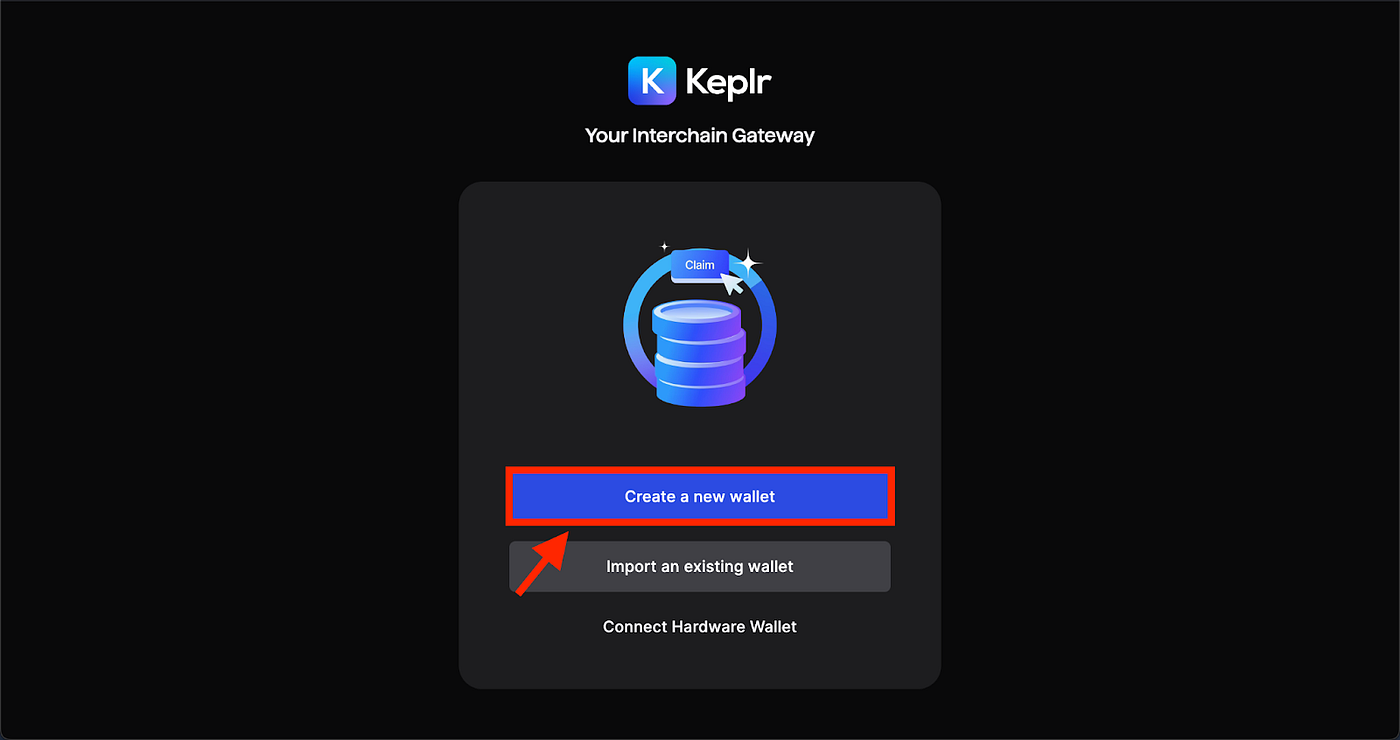
Set Up Keplr Wallet
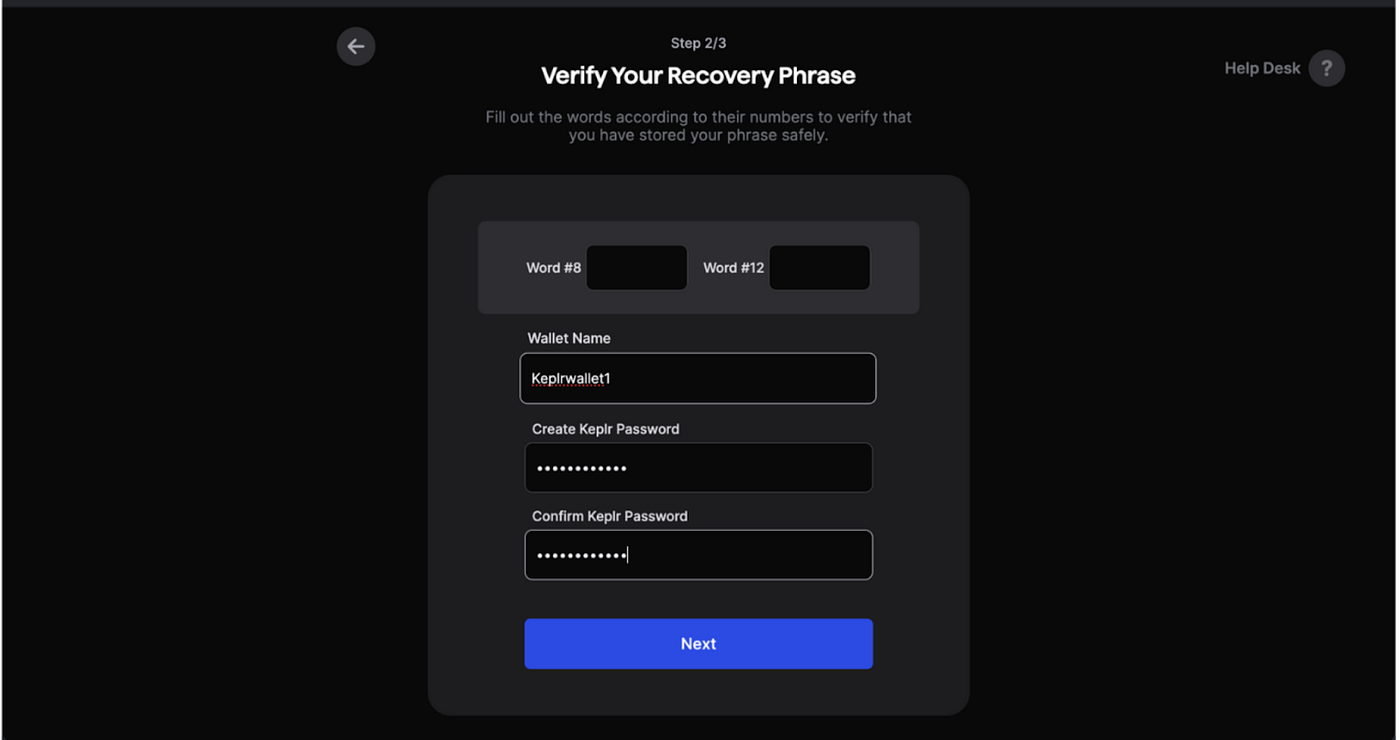
Add a wallet name, set up a password, and secure your seed phrase or recovery phrase.
Warning
Never share your recovery phrase with anyone.
Add MANTRA Chain to Keplr
Visit the official MANTRA Chain Explorer at https://explorer.mantrachain.io. Select the applicable chain and use the Wallet Tools to import the chain connection details into the wallet of your choosing (Keplr and MetaMask are supported).
Click Approve to ensure seamless integration.
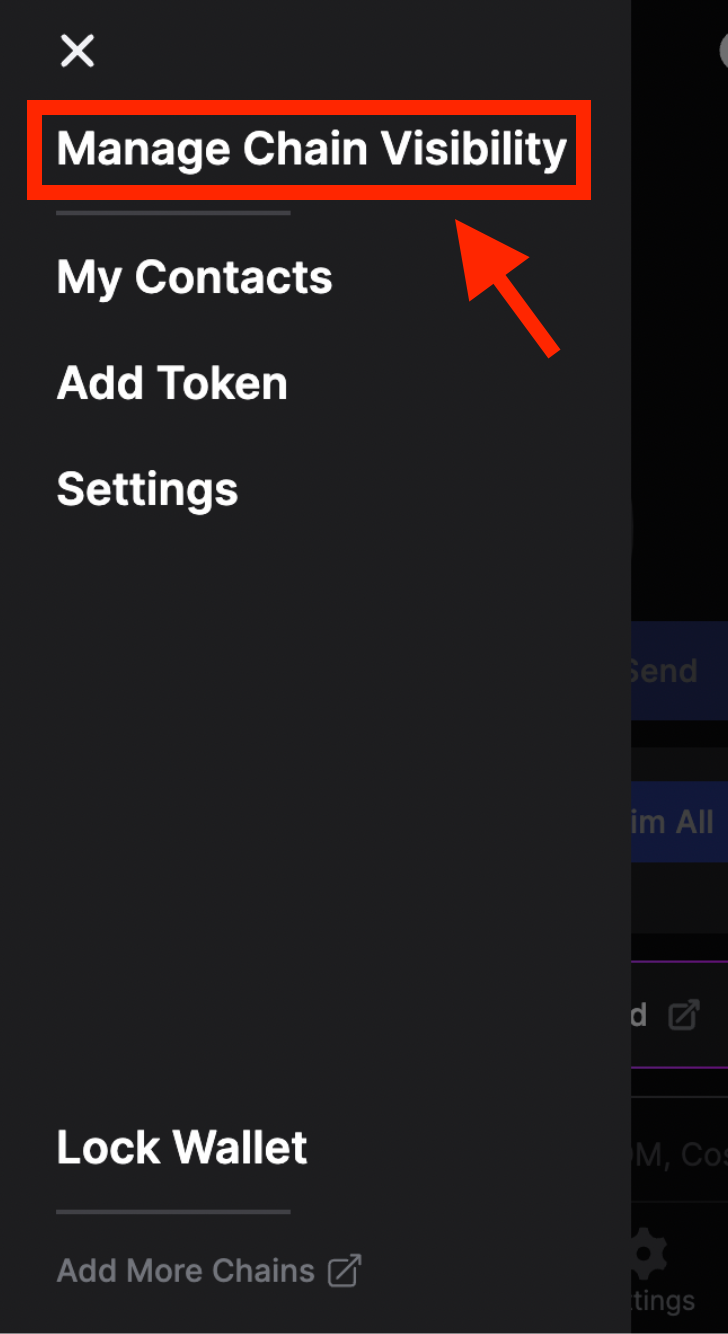
Manage Chain Visibility
Open your Keplr Wallet extension and navigate to the Manage Chain Visibility section. From here, add MANTRA Chain to your wallet.
Add MANTRA DuKong Testnet
Search for MANTRA in the list of available chains and check the box next to MANTRA DuKong Testnet to access testnet features for development purposes.
Copy Your MANTRA Address
Grab your MANTRA address from Keplr Wallet via the MANTRA token address. This address serves as your unique identifier on the MANTRA network and is essential for receiving tokens.
Request Testnet Coins from Faucet
To get testnet tokens:
- Navigate to the MANTRA Dukong Faucet
- Ensure mantra-dukong-1 is selected as the network
- Enter your MANTRA wallet address or EVM wallet address
- Click Request Token — the testnet tokens will be sent to your wallet